How to backtest an EA
Follow these eight steps to run a clean backtest of any MetaTrader 5 Expert Advisor — from opening the Strategy Tester to reading the final report
Open the Strategy Tester
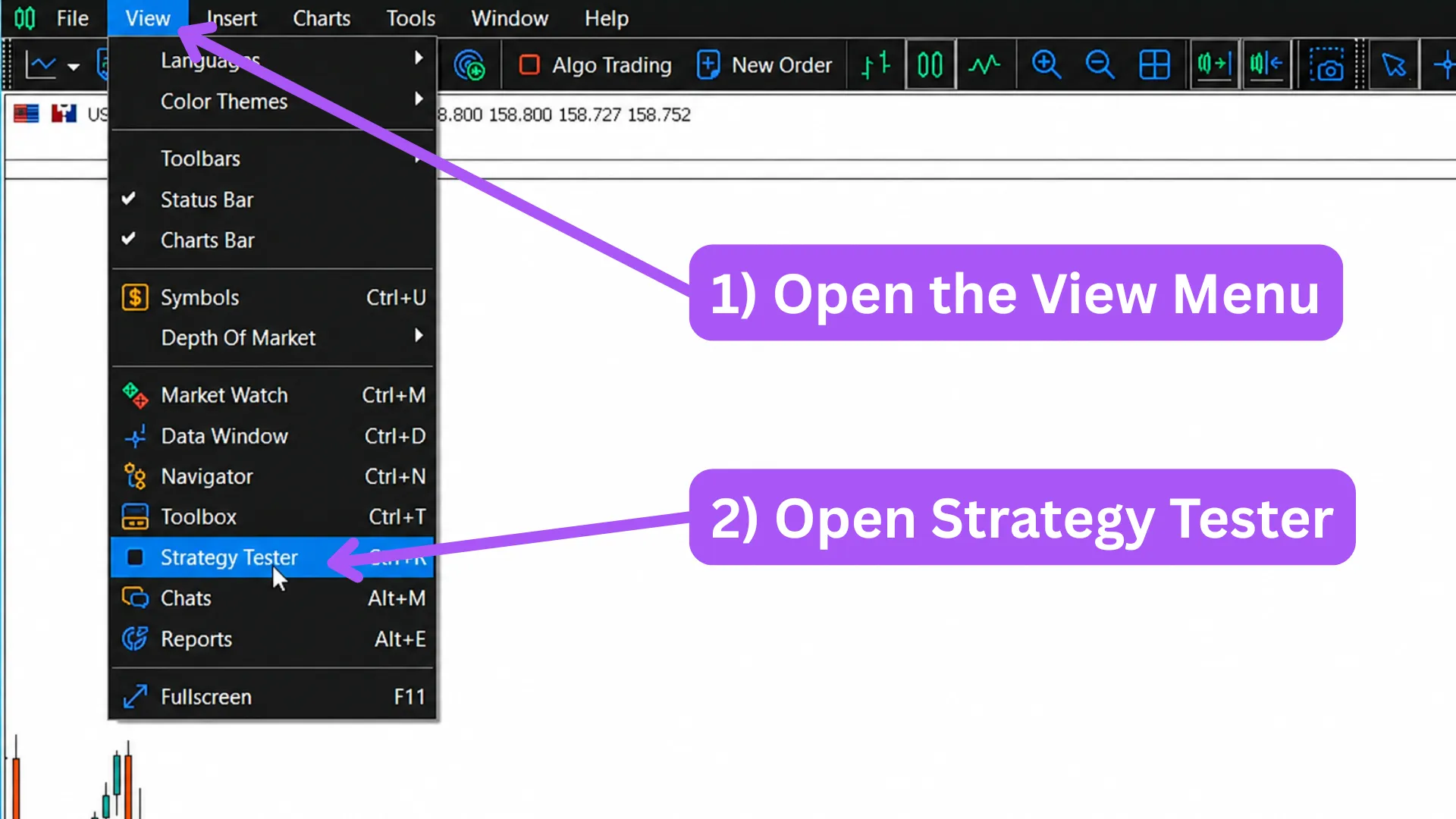
The Strategy Tester is the MetaTrader 5 panel that replays historical price data against an Expert Advisor. Open it by pressing Ctrl + R, or from the top menu under View → Strategy Tester.
A new tab will dock at the bottom of MetaTrader 5. Every option you need to configure a backtest lives in this panel — the steps below walk through each one.
- If the menu bar is hidden, press Alt to reveal it.
- The Strategy Tester can be detached from the main window and resized — useful on multi-monitor setups.
I only see some of the controls — what is missing?
The panel is organised into tabs (Settings, Inputs, Journal, and so on). Resize the panel or scroll horizontally inside it to expose all tabs.
Select the Expert Advisor
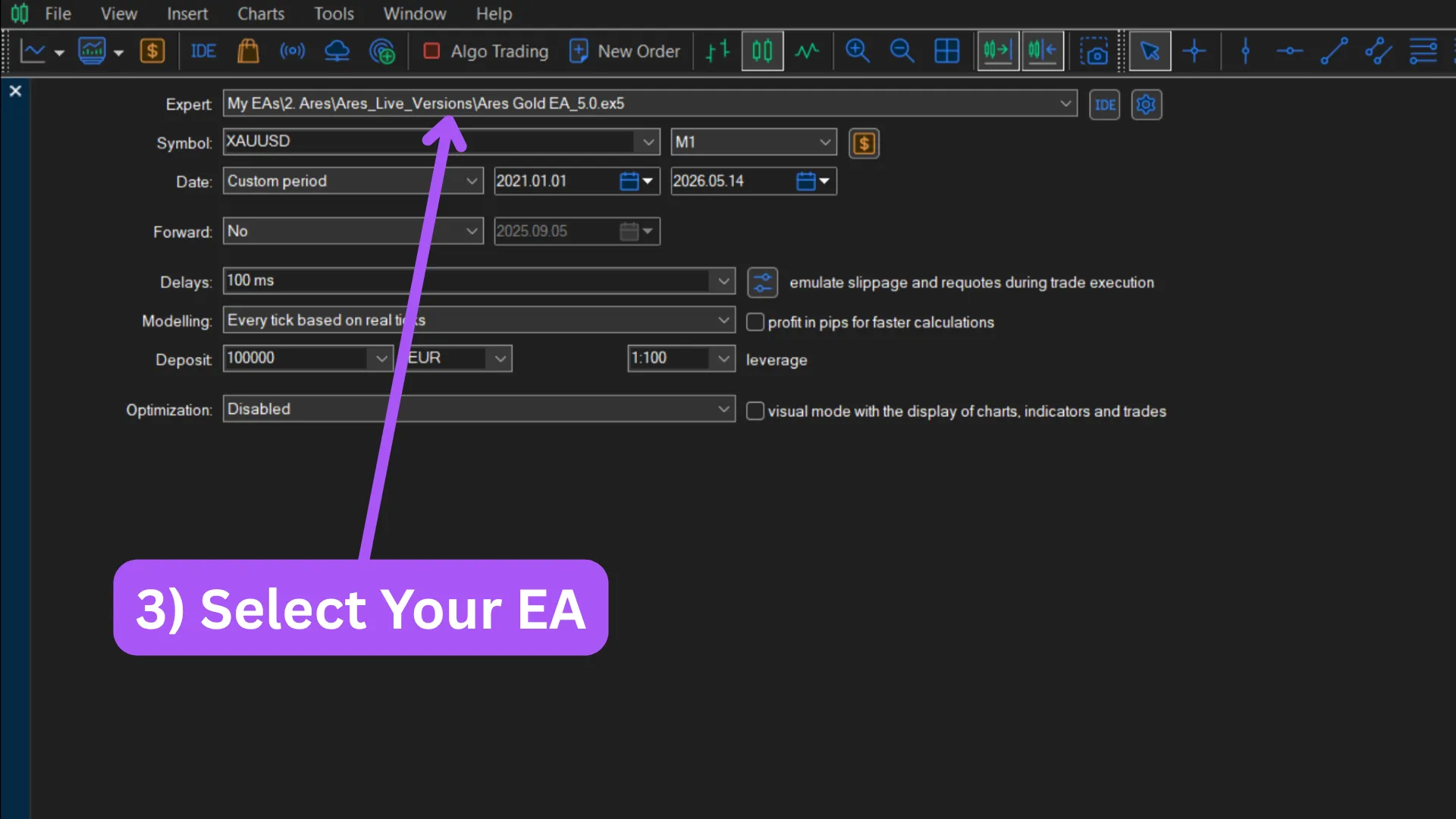
Open the Expert dropdown at the top of the Strategy Tester and pick the EA you want to test. Every Expert Advisor that has been compiled in your MetaTrader 5 will appear in this list.
Once selected, the EA's parameters become available in the Inputs tab — you will configure them in step 6.
- If your EA is not in the dropdown, it has not been compiled into your terminal. Drop the .ex5 file into the MQL5/Experts folder and restart MetaTrader 5.
- Free or demo versions of an EA usually appear under the same name as the paid version — double-check which one you have selected.
I added the .ex5 file but my EA still does not appear in the list.
First, right-click anywhere inside the Expert Advisors list in the Navigator and choose Refresh — this forces MetaTrader 5 to re-scan the folder and usually makes the new file appear immediately. If it still does not show up, restart MetaTrader 5 entirely, since the Strategy Tester reads the EA list at start-up. If the EA is still missing after that, the file is in the wrong folder (it must sit inside MQL5/Experts, not a /Experts folder at the root) or the file itself is corrupted.
Can I test two Expert Advisors in the same backtest?
No. The Strategy Tester runs one EA at a time. To compare two, run them separately and compare the reports.
Choose symbol & timeframe
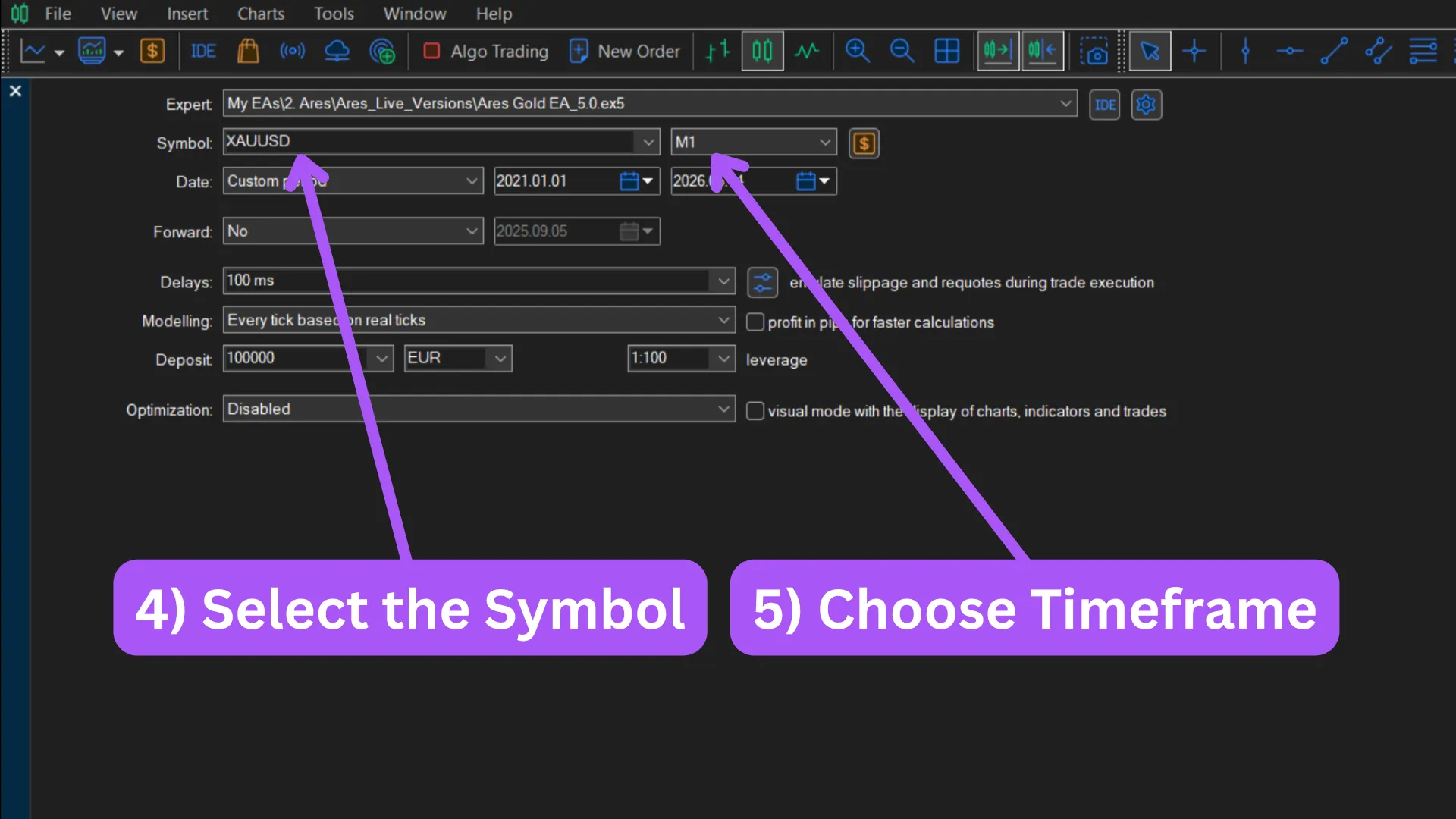
Set Symbol to the instrument the EA will trade, and Timeframe to the candle interval you want it to run on.
The simulation will replay historical data of that exact symbol. The chosen timeframe controls which chart the EA is attached to during the test — but many Expert Advisors are hard-coded internally to a specific timeframe and run their logic on that timeframe regardless of which chart you select. The Ares Gold EA, for example, always works on M1 no matter which chart you attach it to. Check the EA's documentation to see whether your timeframe choice actually matters.
- The symbol must exist in your broker's Market Watch — drag it there first if it does not appear in the Strategy Tester dropdown.
- Symbol names vary by broker: gold can appear as XAUUSD, GOLD or XAU/USD. Match the exact name your broker uses.
My broker uses a suffix like "EURUSD.m" or "XAUUSDpro" — which one do I pick?
That is normal — many brokers add a suffix to distinguish account types or feeds. The EA will run on the suffixed symbol; pick whichever suffix matches the account type you intend to trade live. If you are running a multi-currency EA that trades several pairs at once, you usually have to enter the suffix manually in the EA's inputs so it can build the correct symbol names for every pair it touches.
Can I backtest on a custom symbol I created in MetaTrader 5?
Yes, as long as the symbol has historical data in your terminal. Custom symbols are useful for testing synthetic instruments or imported third-party data.
Set the date range
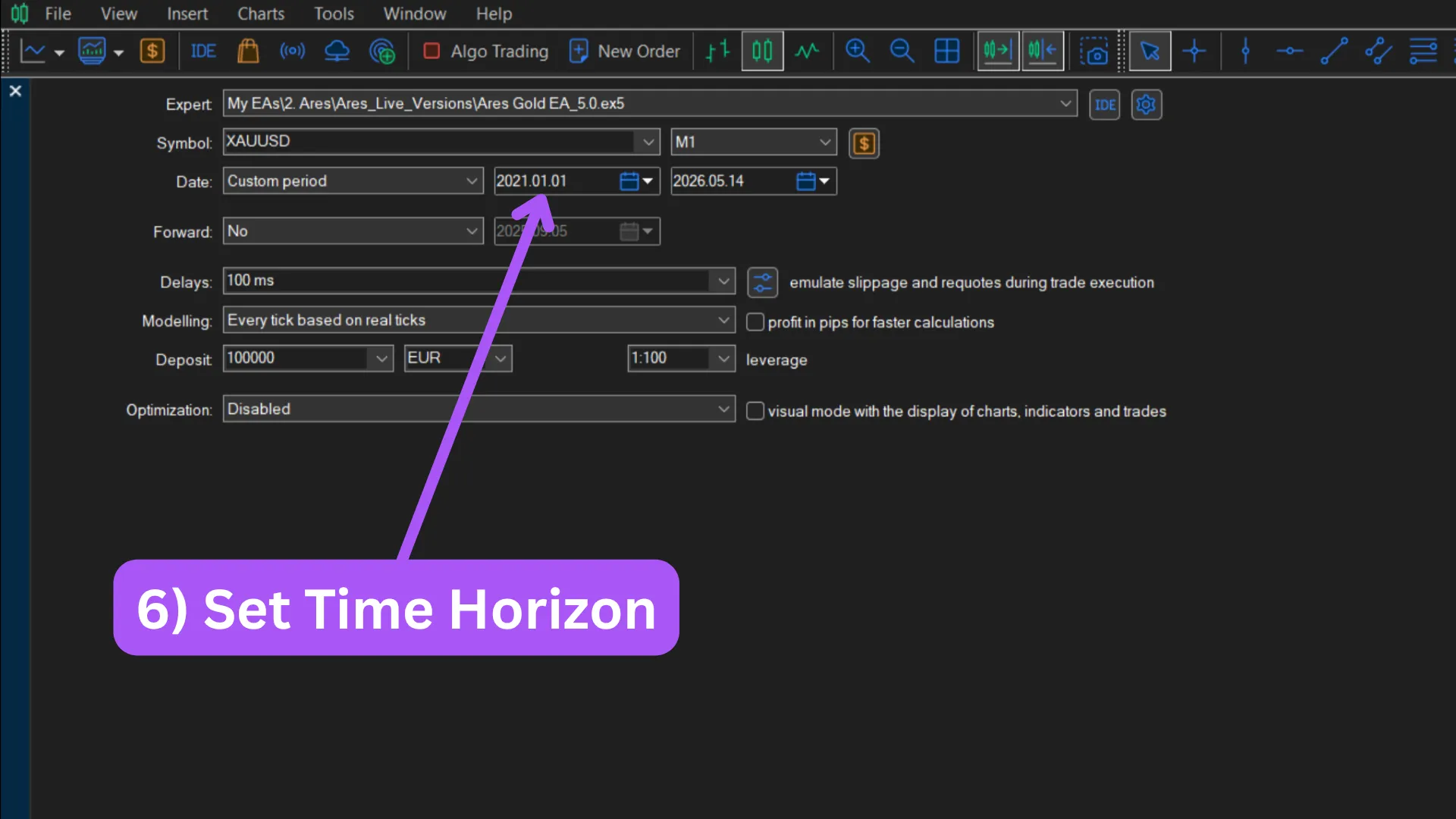
Set the From and To dates at the top of the Strategy Tester. The simulation will replay every tick between those two dates and feed it to the EA.
A meaningful test should cover a mix of market conditions — trending up, trending down, ranging, calm and volatile. What really matters is the number of trades produced, not the calendar window: an intraday EA that fires several thousand trades over a few years already gives you a statistically meaningful sample, while a higher-timeframe EA that only takes twenty trades a year needs many more years before the result can be trusted. As a rule of thumb, never go below three years — that is the bare minimum regardless of style.
- Three years is the absolute minimum. For low-frequency strategies extend the range until you have enough trades for the result to be statistically meaningful — a few hundred trades is a reasonable target.
- Tick data must be available for the entire range. If it is missing, those days are silently skipped and the result is misleading.
How far back should I test?
Far enough to cover several full market cycles — typically five to ten years for forex and indices. Trend-following strategies need to encounter both trending and ranging periods; mean-reversion strategies need both low- and high-volatility regimes.
My backtest stops earlier than the date I set — why?
That window has no tick data. Either download more history from your broker (Tools → Options → Charts → Max bars in chart, then re-open the symbol) or pick a range your terminal actually has data for.
What is an out-of-sample period and why does it matter?
It is a stretch of recent data you deliberately exclude from your initial testing. You only test on it once your settings are final. If the result holds up on that unseen window, the strategy is more likely to be robust than over-fitted to the in-sample data.
Configure the modeling mode
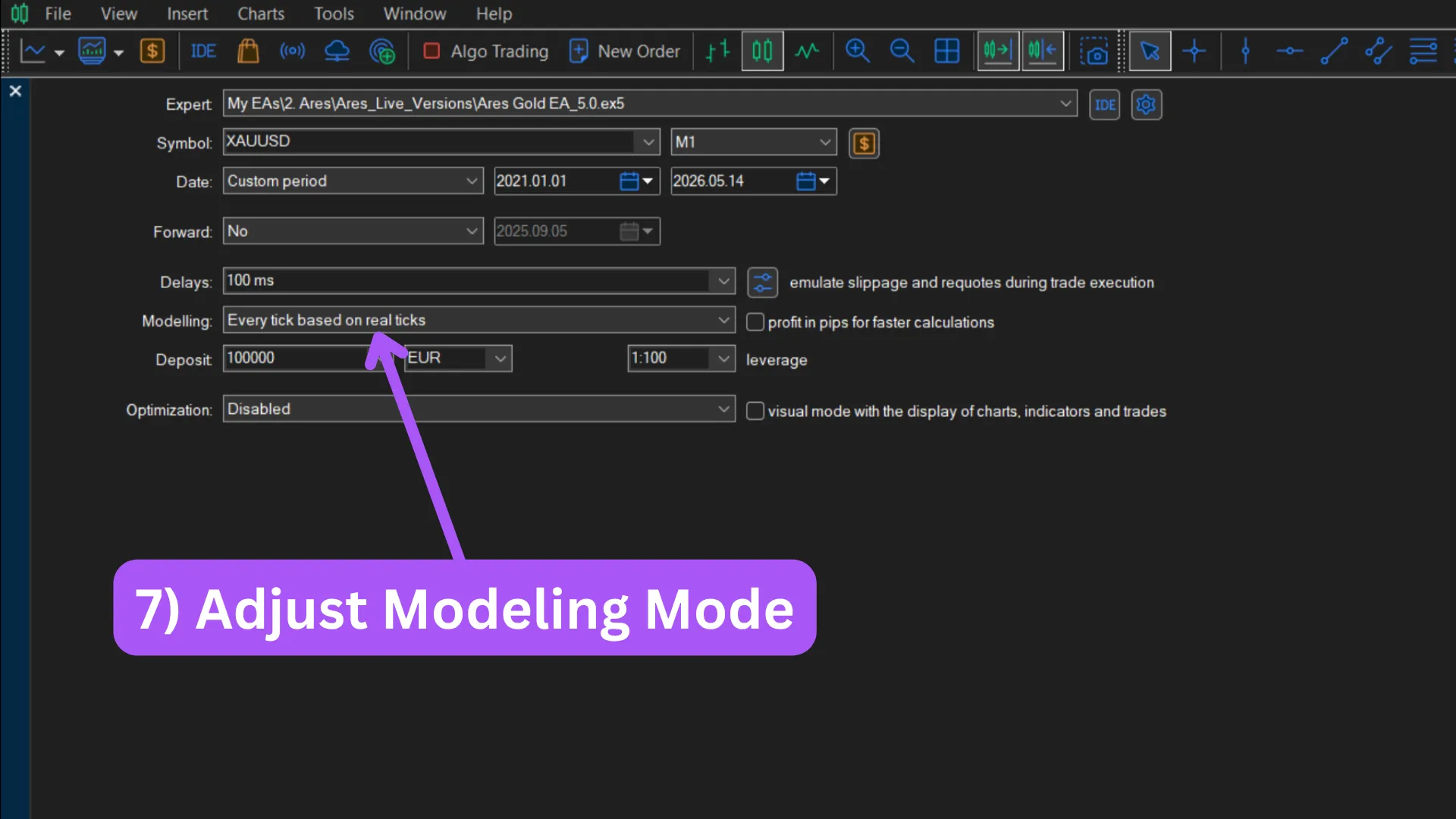
Open the Modeling dropdown and pick the mode the EA was built for. MetaTrader 5 offers four modes, but in practice only two are worth using: 1 minute OHLC and Every tick based on real ticks.
Some Expert Advisors are perfectly happy on 1 minute OHLC because they are built around candle opens and closes — the simulated price path inside each candle does not change their signals, so the result is essentially identical to a real-tick run but far faster. Other EAs absolutely require Every tick based on real ticks — the Ares Gold EA and the ORB Revolution EA are examples.
- Real-tick mode requires downloaded tick data. See the 100% tick data guide for how to get it.
- When in doubt, run the same configuration on both modes. If the numbers come out within a few percent of each other, 1 minute OHLC is good enough; if they diverge meaningfully, the EA needs real ticks.
Why is "Every tick based on real ticks" so much slower than the other modes?
It processes every actual tick that occurred — typically thousands per minute. The faster modes synthesise ticks from candle data, which is much less work but also much less accurate.
Does the modeling mode matter for optimisation runs too?
Yes — and because optimisation runs hundreds of tests, real-tick optimisation can take hours or days. A common workflow is to optimise on 1 minute OHLC for speed, then verify the best parameter sets on real ticks.
Load the EA inputs
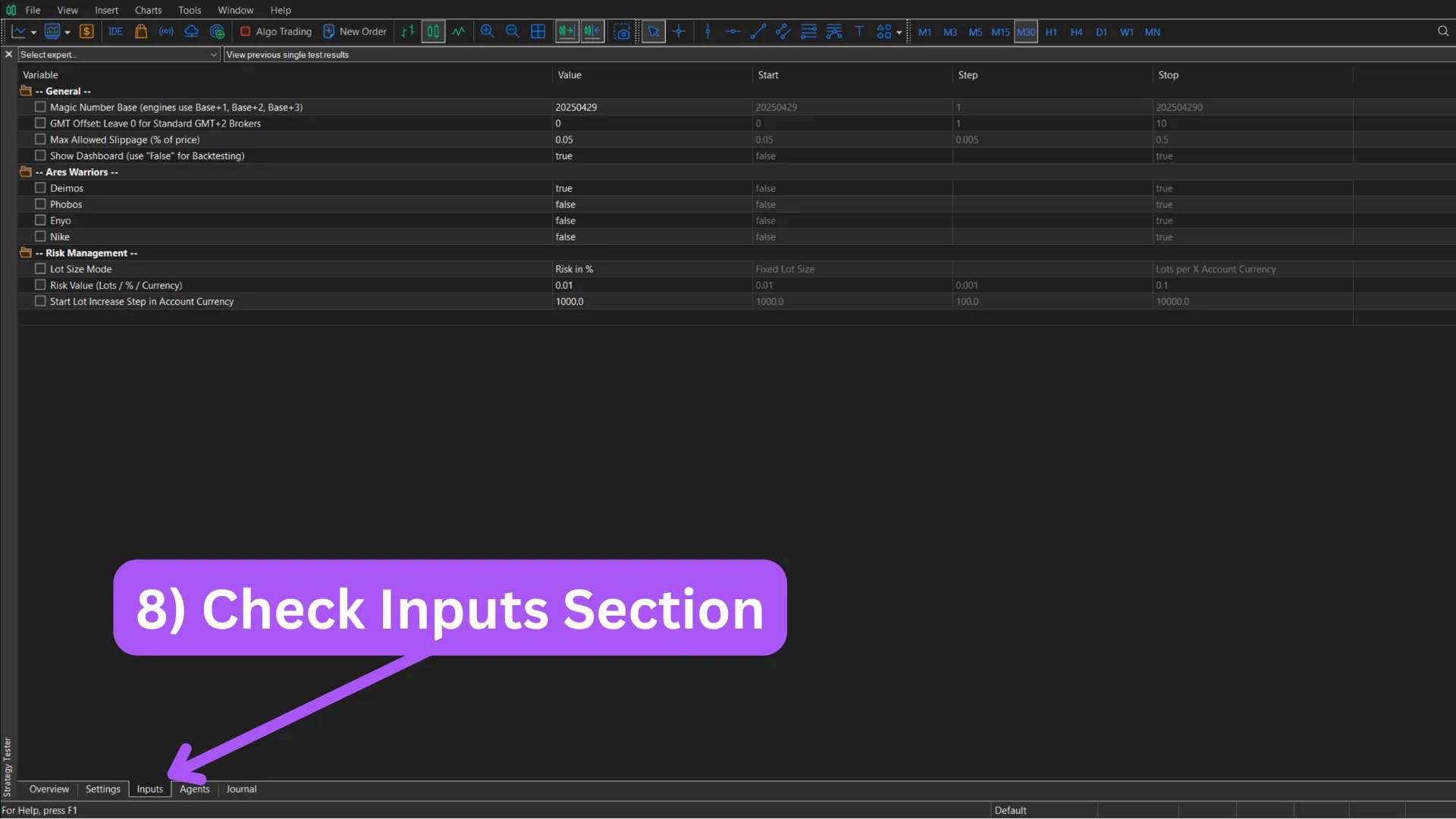
Open the Inputs tab inside the Strategy Tester. You will see every parameter the EA exposes — entry conditions, exit conditions, lot sizing, filters.
To apply a saved configuration, right-click anywhere inside the Inputs list and choose Load, then pick a .set file. The same right-click menu offers Save for storing your own variations as .set files — useful when comparing tweaks side by side without losing the original. Each input is a variable inside the EA; changing one changes the strategy.
- Whether the shipped defaults are a sensible starting point depends on the type of EA. Plug-and-play EAs usually ship with already-optimised defaults, so a first backtest can run unchanged. Framework EAs are different by design — their defaults are placeholders, so you need either a tested .set file or your own configuration before the result becomes meaningful.
- Resist the urge to over-tune inputs to a single date range. That is over-fitting — it produces beautiful backtests and disappointing live trading.
What is a .set file?
A plain-text file that stores a snapshot of every input value. Loading one applies all those values at once — useful for sharing presets between users and for saving your own tested configurations.
Where do I find recommended settings for an EA?
It depends on the type of Expert Advisor. Check the Expert Advisors overview and look at the Setup label on the EA: a "Plug and Play" EA ships with the recommended settings already applied as defaults, so nothing extra is needed. A "Hybrid" EA also ships with sensible defaults but exposes additional inputs you can tune to your own preferences. A "Framework" EA has no recommended settings by design — it is a foundation you configure to fit your own strategy.
Can I leave the defaults unchanged?
For a plug-and-play EA, yes — the shipped defaults are usually already tuned, so backtesting them straight away is the right first step. For a framework EA the defaults are just placeholders and will not produce a meaningful result; load a tested .set file or build your own configuration first.
Run the backtest
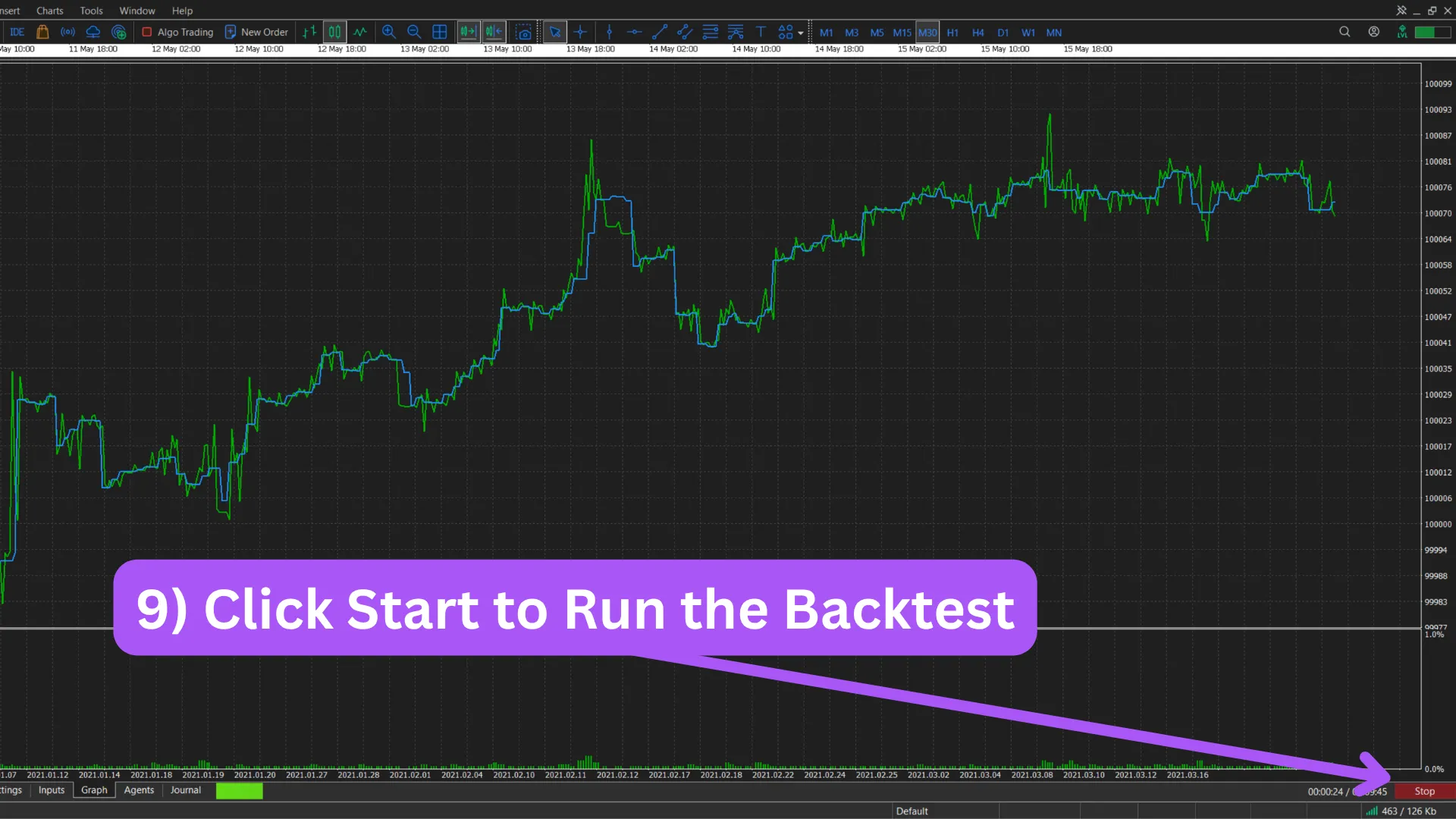
Click the green Start button at the bottom of the Strategy Tester. MetaTrader 5 will replay every tick in your date range and feed it to the EA, exactly as if it were running live on that historical data.
The progress bar shows the simulation moving forward through time; when it reaches the end, the test is complete and the report tabs become populated.
- A multi-year real-tick run typically takes between one and fifteen minutes depending on your CPU and the EA's complexity.
- The Journal tab logs every EA action in real time — entries, exits, errors, skipped signals. Watch it during the first run to confirm the EA is behaving as expected.
The Journal is full of red lines — is something broken?
Not necessarily. Many entries are informational ("market closed", "insufficient margin", "no signal"), not errors. Skim for messages that say "error" explicitly, and check whether each one relates to the EA itself or to market conditions. If you are convinced the EA itself is misbehaving, see What if I find a bug in an Expert Advisor? on the main page for how to report it.
Can I run several backtests in parallel?
One Strategy Tester runs one backtest at a time. To run many in parallel, either use the Optimization mode (which distributes runs across CPU cores) or open multiple MetaTrader 5 instances in separate folders. You can also test the same setting on several instruments at once by switching the Symbol selector to Every symbol selected in Market Watch inside the EA inputs — the Strategy Tester will then run the configuration across all symbols you have visible in Market Watch.
What kind of PC do I need to backtest?
Backtesting works on essentially any modern PC — the Strategy Tester is not particularly demanding, and a basic office machine can run a tick-level test (it will just take longer). That said, you feel the difference on better hardware: a faster multi-core CPU and more RAM make multi-year real-tick runs and optimisation noticeably quicker, often by an order of magnitude. If you plan to optimise regularly, investing in a stronger CPU and at least 16 GB of RAM pays off quickly.
Read the report
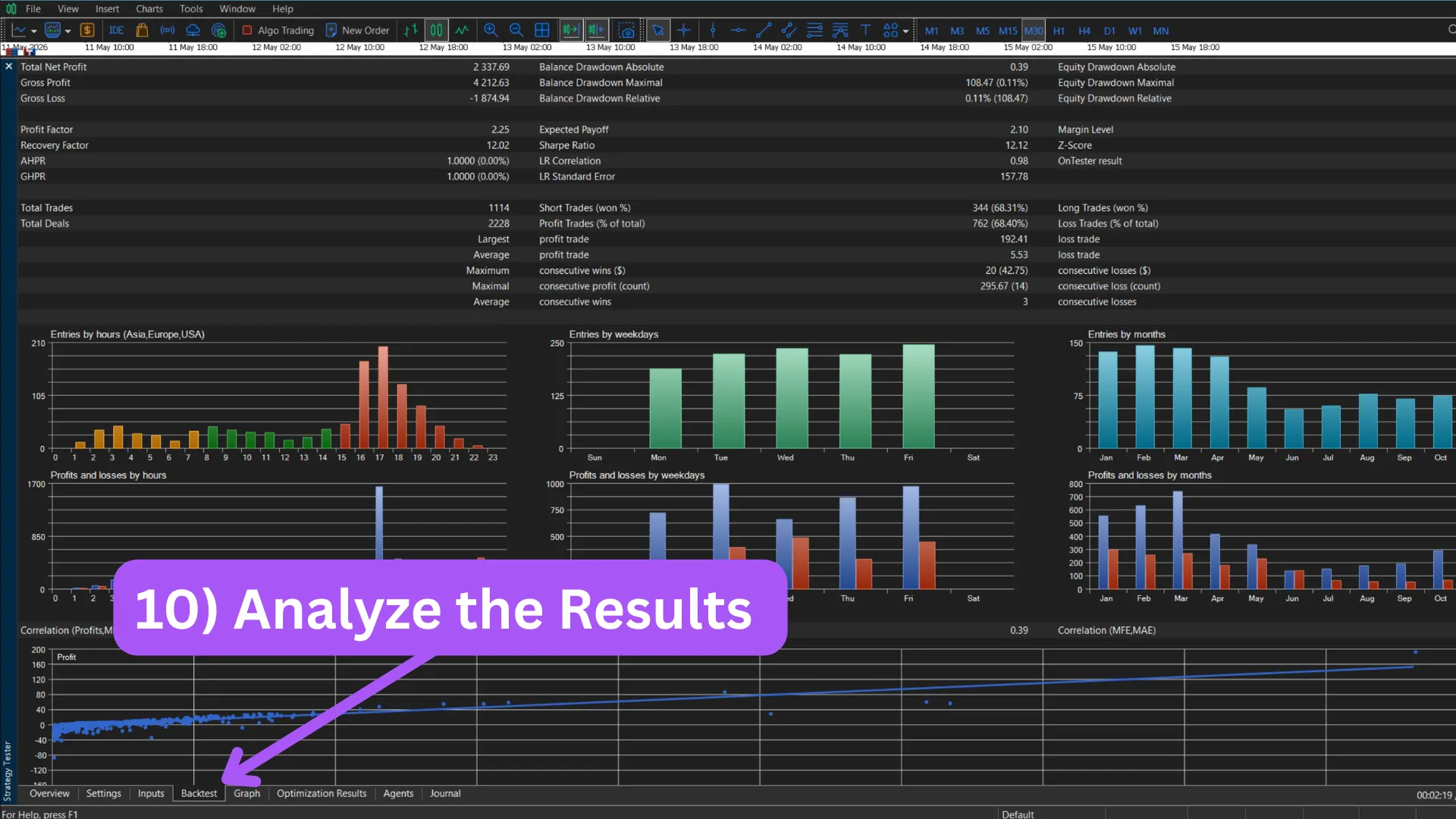
When the run finishes, the Backtest tab shows the numerical report and the Graph tab shows the equity curve. The equity curve is usually more honest than the numbers — a chart hides nothing.
Focus on Net Profit, Profit Factor, Maximum Drawdown and Recovery Factor, and on the shape of the equity curve. A smooth, steadily rising curve matters more than a big headline profit produced by a few lucky trades.
- A backtest is a historical simulation, not a guarantee of future returns. Treat it as evidence, not proof.
- Re-run the same EA on a different date range to check that the result is not specific to one favourable market environment.
- Compare the drawdown to your tolerance: if the worst historical drawdown is larger than what you could stomach live, the strategy is not the right fit, no matter how profitable it looks.
Which single metric matters most?
If you have to pick one number, look at the Recovery Factor. It is simply Net Profit divided by Maximum Drawdown, which reduces a strategy to a single comparable figure: how much you earned relative to the worst pain you had to endure to earn it. A Recovery Factor of 5 means the strategy made five times its largest drawdown over the test — that lets you compare very different EAs (and very different account sizes) on equal footing in a way that raw Net Profit never can.
What counts as a "good" Profit Factor?
A Profit Factor above 1.5 over a long period generally indicates a healthy edge; above 2.0 is excellent; below 1.2 is fragile. Context matters — a high-frequency strategy can be healthy at 1.3 if it trades enough.
My backtest looks great but live trading does not match. Why?
Several reasons typically combine: execution slippage on live trades, news events not modelled in tick data, the broker filling orders differently than the test assumed, and over-fitting to the backtest period. The optimisation guide covers how to reduce the gap.